Table of Contents
ToggleThe Ultimate Firestick & Streaming Guide (2026): Best Apps, Sideloading, Player Setup, & Vega OS Realities
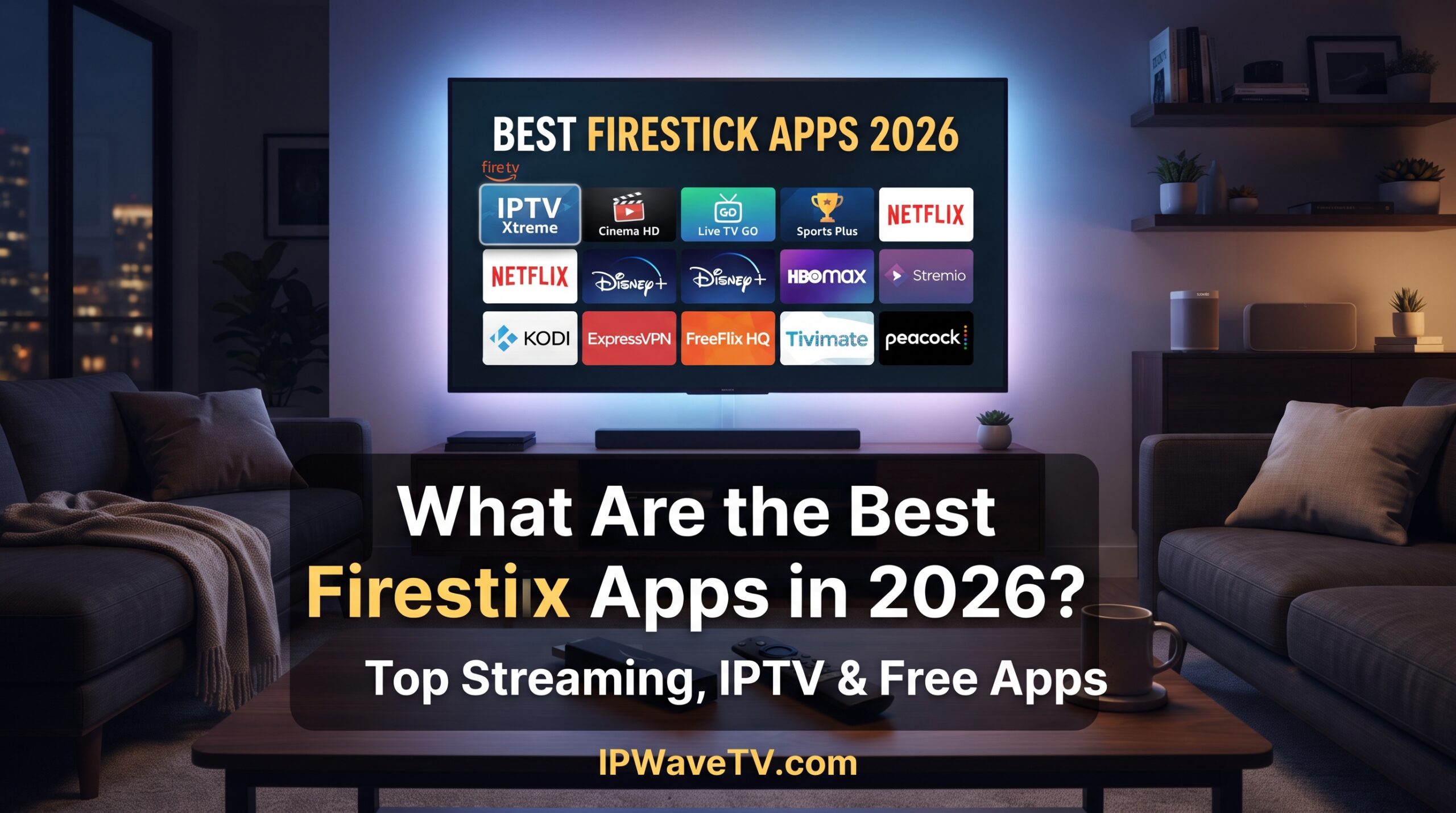
If you’re looking for the best Firestick apps, you’ve got plenty of options in 2026. Whether you’re into movies, live TV, sports, music, IPTV, or just want to get more out of your Firestick, there’s probably an app for it.
But there’s a small catch: not every Fire TV device works exactly the same way anymore. Amazon is changing things with its move toward Vega OS, so the app you used on an older Firestick might not work the same way on a newer model. Yep, streaming devices are getting complicated too!
That’s why we’ve put together this guide. We’ll go through the best Firestick apps 2026, including official streaming apps, IPTV players, useful tools, VPNs, and a few simple ways to deal with annoying buffering.
Quick Answer: The best Firestick apps really depend on what you’re trying to watch or do. Netflix, YouTube, Prime Video, Tubi, and Pluto TV are easy choices for everyday streaming, while apps like TiviMate and Kodi give you more flexibility on compatible Fire OS devices. If you’re installing an APK, make sure you’re getting it from a trustworthy source and only accessing content you’re legally allowed to watch.
Best Firestick Apps 2026: Quick Comparison
Here’s a quick look at some of the most useful Firestick apps you might want to try:
| App | Category | Price | Sideload Required? | What It’s Good For |
|---|---|---|---|---|
| TiviMate | IPTV Player | Free / Paid features | Usually | EPG, playlists, TV-style interface |
| Kodi | Media Hub | Free | Sometimes | Add-ons, media library, PVR |
| IPTV Smarters | IPTV Player | Free / Paid features | Depends on device | Live TV, VOD, EPG |
| Tubi | VOD / FAST | Free with ads | No | Free movies and TV |
| Pluto TV | FAST | Free with ads | No | Live channels and on-demand content |
| Plex | VOD / Media Server | Free / Paid options | No | Streaming and personal media |
| YouTube | Video | Free / Premium | No | Videos, music, live streams |
| Downloader | Utility | Free | No on compatible Fire OS | Downloading files and apps |
| VPN Apps | Security | Free / Paid | Usually no | Private, encrypted connections |
| VLC | Media Player | Free | Depends on device | Playing different media formats |
App availability, pricing, and features can vary depending on your country and Fire TV model.
So, What’s Actually Changed With Firestick in 2026?
If you’ve had a Firestick for a while, you might’ve noticed that things aren’t quite as simple as they used to be.
Older Fire TV devices running Fire OS have traditionally given users more flexibility when it comes to installing apps outside the Amazon Appstore. That’s where terms like sideloading and APK files come into the conversation.
Amazon is also moving toward Vega OS, which uses a different platform architecture. That means newer Fire TV hardware may handle apps very differently from older Firestick models.
So before you follow an old tutorial you found online, check which Fire TV model and operating system you’re actually using. A guide from a few years ago might be about as useful as a flip phone in 2026!
Fire OS vs. Vega OS: Why It Matters
If you’re buying a new streaming device specifically because you want flexibility with apps, this is worth paying attention to.
Older compatible Fire TV devices running Android-based Fire OS have historically supported Android applications and certain sideloading methods.
Newer Vega OS devices use a different application system, so traditional Android APK installation isn’t necessarily available in the same way.
In other words, don’t buy a new Firestick just because an old YouTube video says you can install anything on it. Check the current specifications and software first.
What About Android TV and Google TV?
If having access to a broad Android application ecosystem is important to you, Android TV and Google TV devices are another option.
Devices such as the NVIDIA Shield TV and compatible Google TV hardware can provide a more familiar Android-based environment.
The right choice really comes down to what you want to install and how much control you want over your streaming setup.
Useful Firestick Apps That Aren’t Actually Streaming Apps
Not every useful Firestick app is there to play movies.
Some apps simply make your device easier to manage.
Downloader
Downloader is a popular utility on compatible Fire TV devices. It lets you browse web pages and download files, which can be useful when an app isn’t available directly through the Amazon Appstore.
Just remember: downloading an APK doesn’t automatically mean it’s safe. Always check where the file is coming from.
Alternative App Stores
You might also come across alternative Android TV app stores and repositories.
They can offer apps that aren’t listed in Amazon’s store, but there’s an obvious downside: you need to be more careful about what you’re installing.
If an APK comes from a random website with five flashing download buttons and a suspicious “YOU WON!” popup, maybe don’t click it. Your Firestick doesn’t need that kind of adventure.
Mouse and Navigation Tools
Some Android apps were designed for phones and touchscreens rather than TV remotes.
A mouse-control tool can sometimes make those apps easier to navigate on compatible devices.
Just keep in mind that compatibility can change after Fire TV updates.
VPN Apps
A VPN can encrypt the connection between your Firestick and the VPN server, which can be useful if you’re concerned about privacy on shared or public networks.
A VPN isn’t a magic button for faster streaming, though. Sometimes it can actually make your connection slower depending on the server you’re connected to.
IPTV Players: TiviMate, Kodi, and Other Popular Options
Here’s something that’s easy to get confused about: an IPTV player isn’t the same thing as an IPTV service.
An IPTV player is basically the app you use to organize and play compatible streams. It doesn’t automatically give you access to TV channels.
TiviMate
TiviMate is popular with people who want their IPTV setup to feel more like traditional television.
Depending on the version and setup, it can offer features such as:
-
Electronic Program Guide (EPG)
-
Multiple playlists
-
Favorites
-
Channel organization
-
Catch-up support
-
Recording features
-
TV-style navigation
If you like having your channels neatly organized instead of scrolling through a giant list forever, this type of interface can be really handy.
Kodi
Kodi is a free, open-source media center that’s been around for years.
You can use it to organize local media and compatible streaming sources, and you can customize the interface with add-ons and other features.
Just remember that Kodi itself doesn’t provide unauthorized movies or TV channels. What you install and access through Kodi matters.
IPTV Smarters and XCIPTV
IPTV Smarters and XCIPTV are also popular options for organizing IPTV content on supported devices.
Depending on the platform and version, they can offer features such as live TV, VOD, EPG information, profiles, and external-player support.
Stremio and Other Media Hubs
Stremio takes a slightly different approach by giving you one interface for organizing supported streaming sources through add-ons.
As always, check what each add-on actually provides and make sure you’re using legitimate, authorized content sources.
Free Streaming Apps Worth Checking Out
If you’re trying to save money, there are plenty of official free streaming apps available for Fire TV.
Tubi
Tubi offers free, ad-supported movies and TV shows in supported markets.
There’s no traditional monthly subscription for its free catalog, although you’ll have to sit through some ads. That’s the trade-off for free streaming.
Pluto TV
Pluto TV is another popular free option.
It offers live channels and on-demand content, with the exact selection depending on your location.
It’s a nice option when you just want to turn on the TV and start watching something without spending 20 minutes deciding what to subscribe to next.
Plex
Plex is useful if you want a combination of free streaming and access to your own personal media library.
It’s especially handy for people who already have movies, shows, or other media stored on a computer or home server.
YouTube
And, of course, there’s YouTube.
It’s one of the easiest Firestick apps to recommend because you can find almost everything from music and tutorials to live streams, news, entertainment, and sports-related content.
Paid Streaming Apps for Movies and Sports
If you’re willing to pay for premium content, there are plenty of established services available on Fire TV.
Sports Streaming
Depending on where you live, services such as DAZN, Fubo, and ESPN streaming products can provide access to different sports and competitions.
The important thing here is to check the current rights in your country. Sports licensing changes all the time, so don’t assume a service showing a particular competition in one country will show it in another.
Movies and TV Shows
Popular subscription services include:
-
Netflix
-
Prime Video
-
Disney+
-
Hulu in supported markets
-
Max
-
Paramount+
Again, the catalog can vary by country. What’s available in the US might not be available in the UK, Canada, or Ireland.
Where Does IPWaveTV Fit Into a Firestick Setup?
If you’ve already got a compatible IPTV player and you’re looking for an IPTV subscription, IPWaveTV is another option to consider.
IPWaveTV serves customers in the UK, Canada, and Ireland and offers HD, FHD, and 4K content where available, along with live sports, movies, and series. There’s also a 24-hour trial, which gives you a chance to check how the service works with your device before committing to a longer subscription.
You can check out IPWaveTV if you’d like to learn more.
Just remember the basic setup: the IPTV player is the application you use, while the IPTV provider supplies the authorized stream access. They’re two different things.
Firestick Buffering? Try These Simple Fixes
Nothing kills movie night faster than the dreaded spinning circle.
Luckily, buffering doesn’t always mean your Firestick is broken. It can be caused by weak Wi-Fi, network congestion, an app problem, or an issue with the streaming source.
1. Restart Your Firestick
Yes, it’s the classic “turn it off and on again” trick.
And honestly, it works surprisingly often.
A restart can clear temporary issues and refresh your network connection.
2. Clear the App Cache
If one particular app is acting strangely, clearing its cache can sometimes help.
Go into your Fire TV settings, find the application, and look for the option to clear its cached data.
3. Improve Your Wi-Fi
If your router supports it, try connecting your Firestick to the 5 GHz Wi-Fi network when you’re close enough to get a strong signal.
For devices that stay in one place, Ethernet can also provide a more stable connection.
4. Try Another Player
If you’re having trouble with one compatible media player, testing another one can help you figure out whether the problem is the app or the stream itself.
5. Check the Streaming Source
If Netflix, YouTube, and other services work perfectly but one particular stream keeps buffering, the problem may be with that source rather than your Firestick.
6. Keep Everything Updated
Make sure your Fire TV software and your applications are reasonably up to date.
Sometimes an update fixes compatibility problems that weren’t obvious before.
Don’t Forget About Security
This is especially important if you’re installing applications outside an official app store.
Before installing an APK, check where it came from and avoid suspicious download sites.
You can also use services such as VirusTotal to scan files for known security threats.
It’s not a magical guarantee that a file is safe, but it’s another useful check before putting unknown software on your device.
Also, be suspicious of apps asking for permissions they clearly don’t need. A simple video player probably doesn’t need access to every detail of your digital life.
Frequently Asked Questions
Is sideloading apps on a Firestick legal?
Installing software through supported developer options isn’t generally a copyright violation by itself.
However, what you do with the application matters. Accessing copyrighted content without the appropriate authorization can violate copyright law.
Always use legitimate apps and authorized content sources.
Can you sideload apps on newer Fire TV models?
It depends on the exact device and operating system.
Older Fire TV devices running Android-based Fire OS have traditionally supported Android application installation methods.
Newer hardware using Amazon’s Vega OS has a different application architecture, so traditional Android APK installation isn’t necessarily available.
Check your exact Fire TV model and software version before following an installation guide.
What’s the difference between an IPTV player and an IPTV service?
It’s pretty simple:
IPTV player: The app you use to organize and play streams.
IPTV service: The service that provides the authorized stream access or credentials.
For example, TiviMate can be the player, while a separate IPTV service supplies the content.
Why do people use VPNs on Firestick?
A VPN encrypts your internet traffic between your device and the VPN server and can provide additional privacy.
It can also change the IP address websites and services see.
But don’t expect a VPN to magically fix every buffering problem. In some cases, it can actually reduce your speed.
What are the best Firestick apps for free streaming?
Some popular official options include Tubi, Pluto TV, Plex, YouTube, and other free ad-supported streaming services available in your region.
The exact selection depends on your country and Fire TV model.
Can I use IPTV on a Firestick?
Yes, compatible Fire TV hardware can run IPTV players, depending on the device, operating system, application, and service.
Make sure the IPTV source you’re using is authorized to provide the content you access.
Final Thoughts
Finding the best Firestick apps in 2026 really comes down to what you want to do with your device.
For simple streaming, apps like Netflix, YouTube, Prime Video, Tubi, Pluto TV, and Plex are easy places to start. If you want more customization, apps such as Kodi and TiviMate can give you additional options on compatible devices.
The biggest thing to keep an eye on is Amazon’s move toward Vega OS. If you’re buying a new Fire TV device mainly because you want to sideload Android apps, check the operating system before spending your money.
And if you’re setting up IPTV, remember the basics: choose a compatible player, use an authorized content source, keep your apps updated, and don’t install random APKs from sketchy websites.
If you’re looking to test an IPTV subscription on a compatible setup, you can visit IPWaveTV and check out the 24-hour trial before choosing a longer subscription.